How to Record Webinars
Webinars, or Web Seminars, are becoming an increasingly popular way
to share information over the internet. And with the right software,
it's easy to save them forever as a Video file. This article tells you
how to do it using Replay
Video Capture from Applian Technologies
Inc.
Replay Video Capture can create high-quality videos from anything on your PC screen. These videos are saved as either high-speed MPEG-2 files or as Windows Media video (WMV) files. The program is super easy to use.
Here's how to record Webinars:
- Download
and install Replay Video Capture .
- When you first open the program it will ask you to set-up the audio recording source. You will see a dialogue box like this:
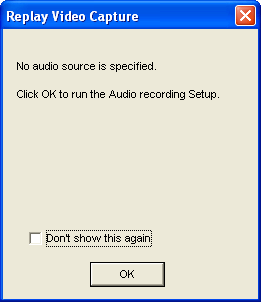
Click "Ok" to run the audio test:
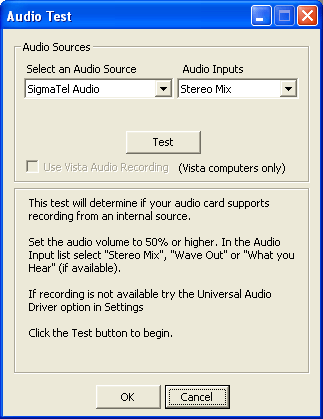
Click "test" and the computer will find the right audio source for you to use. I have Windows XP - but if you have a Windows Vista you will want to check the box by "Use Vista Audio Recording." Once you have run the test you are ready to start recording.
- When you open Replay Video Capture - it appears like this:
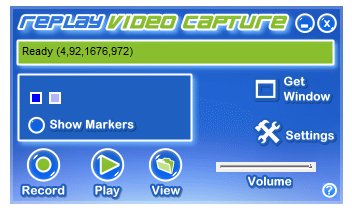
- Click Settings. The Settings dialog appears:
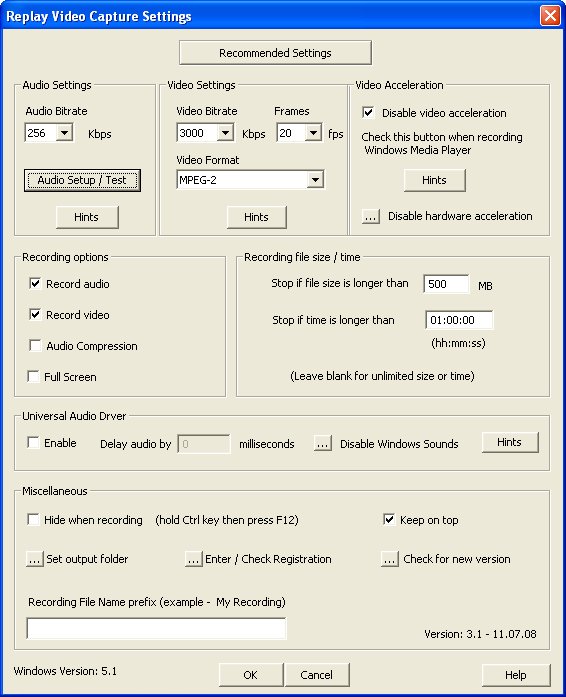
- Since you want to record a webinar - which usually is very low motion I would choose Medium quality - click on the "Recommended Settings" button and highlight "Medium Quality" and your video settings will be adjusted.
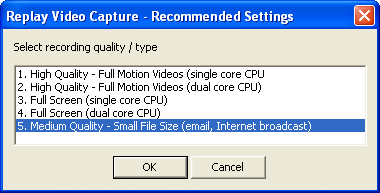
- Now your settings are perfect, click OK. And you will be taken back to the main screen.
- Click on the Get Window button to choose which region of screen you want to record. The smaller the region you record the better the quality of your video. You can move the flashing blue and pink boxes to define your recording region or if you want to record the full screen - check the box next to "Full Screen" under "Recording Options" in the Settings dialogue box.
- Click Record.
- Wait 2 seconds until Replay Video Capture's status shows "Recording,"
as shown here:
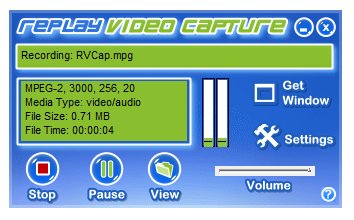
- Click Stop when you're done. And that's all there is to it. You will have a beautiful video file of your webinar to watch and enjoy when you like. Have fun.
Products mentioned in this article:

Replay Video Capture
|